HubSpot includes a built-in lead scoring tool that most users either do not know exists or have never configured properly. When set up correctly, it automatically identifies your hottest prospects and tells your sales team exactly who to call next. This guide walks you through building a professional-grade lead scoring model from scratch — no prior experience required.
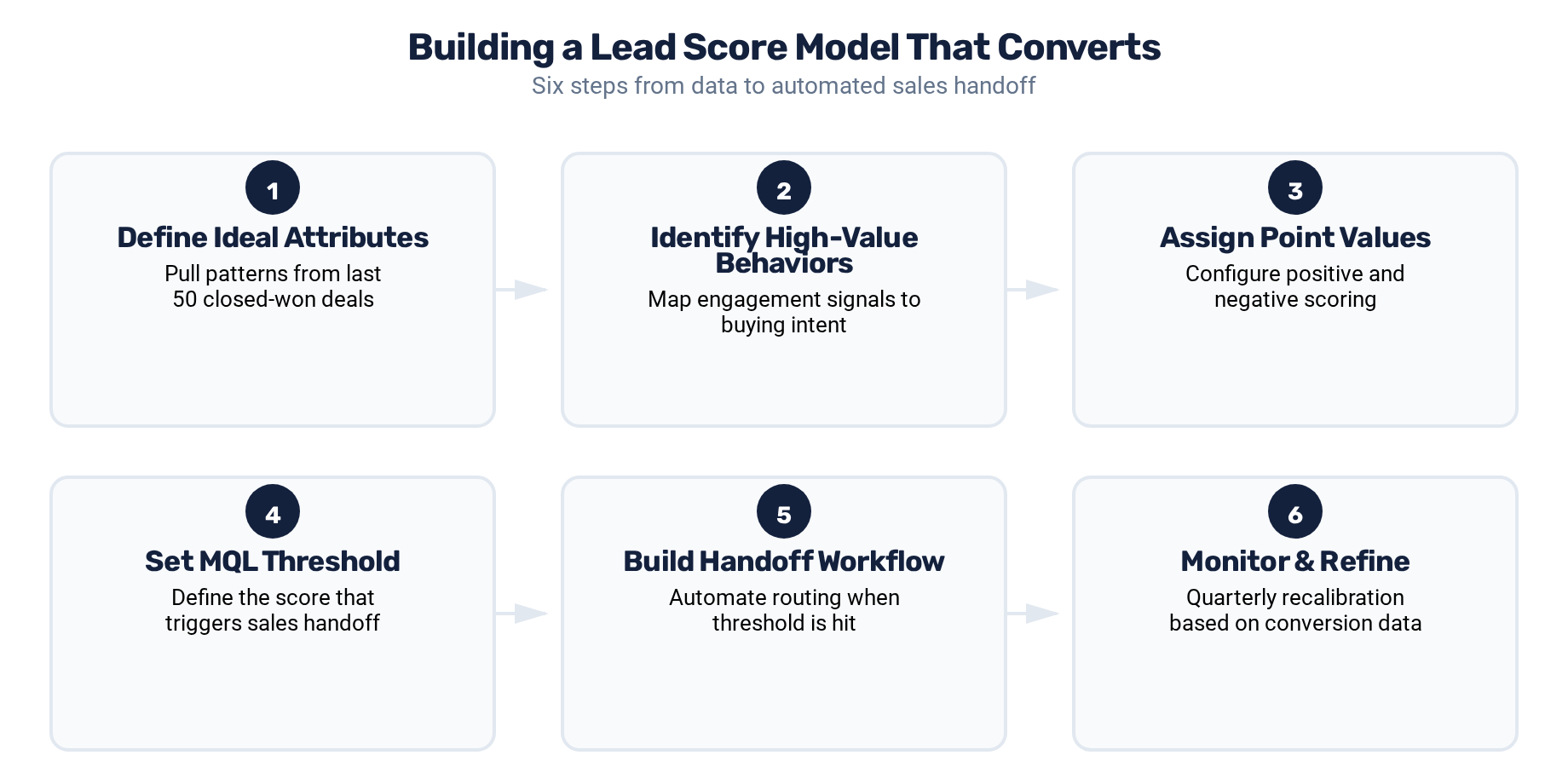
What Lead Scoring Actually Does
Lead scoring assigns a numerical value to each contact in your database based on two dimensions: how well they match your ideal customer (fit) and how actively they are engaging with your brand (behavior). The combined score tells you which contacts are most likely to become customers.
Think of it as a prioritization system. Instead of your sales team scrolling through a contact list and guessing who to call, they open a queue sorted by score and start at the top. The highest-scoring contacts have both the right profile and the right engagement patterns.
In HubSpot, lead scoring lives under Settings, then Properties. HubSpot provides a default "HubSpot Score" property, but you can also create custom score properties for different use cases — one for marketing qualification, another for sales readiness, a third for product-qualified signals if you run a SaaS product.
Step 1: Define Your Ideal Customer Attributes
Before touching HubSpot, you need clarity on what a good-fit lead looks like. Pull a list of your last 50 closed-won deals and look for patterns across these dimensions:
- Job title or role: What titles appear most frequently among your buyers? Are they directors, VPs, or individual contributors?
- Company size: Do you close more deals with companies that have 50 employees or 5,000?
- Industry: Are certain industries disproportionately represented in your customer base?
- Geography: Do you sell nationally or are your wins concentrated in specific regions?
- Revenue range: Do your best customers fall within a specific annual revenue bracket?
Write these patterns down. They become your positive fit criteria — the attributes that earn a contact points in your scoring model.
Also identify the attributes that disqualify a contact. Competitors, students, job seekers, and companies outside your serviceable market should receive negative points or be excluded entirely.
Step 2: Identify High-Value Behaviors
Next, map the actions that your actual buyers took before they became customers. In HubSpot, go to a closed-won deal, click into the associated contact, and review their activity timeline. Do this for 20-30 contacts and note the common behaviors:
- Page views: Which pages did buyers visit? Pricing pages, product pages, and case study pages are typically strong intent signals.
- Content downloads: Which offers did they convert on? Bottom-of-funnel content like ROI calculators and buyer guides signals stronger intent than top-of-funnel blog subscriptions.
- Email engagement: Did buyers open and click more emails than non-buyers? How many email interactions preceded the first sales conversation?
- Form submissions: Demo requests and contact form submissions are obvious high-intent actions. What about webinar registrations or free trial signups?
- Recency and frequency: Did buyers engage multiple times in a short window? A contact who visits five pages in one week is signaling more urgency than one who visits five pages over six months.
Step 3: Assign Point Values in HubSpot
Now open HubSpot and navigate to the HubSpot Score property. Click "Add criteria" to start building your model. HubSpot lets you create positive and negative scoring groups.
Positive fit criteria examples:
| Criteria | Points |
|---|---|
| Job title contains "Director" or "VP" | +15 |
| Company size 50-500 employees | +10 |
| Industry matches target vertical | +10 |
| Located in target geography | +5 |
Positive behavior criteria examples:
| Criteria | Points |
|---|---|
| Visited pricing page | +25 |
| Submitted demo request form | +50 |
| Downloaded case study | +15 |
| Clicked email link (per click) | +3 |
| Attended webinar | +15 |
| Visited 3+ pages in one session | +10 |
Negative criteria examples:
| Criteria | Points |
|---|---|
| Job title contains "Student" or "Intern" | -20 |
| Email domain is competitor | -50 |
| Unsubscribed from email | -25 |
| No activity in 90+ days | -10 |
| Free email domain (gmail, yahoo) | -5 |
Start conservative with your point values. You can always adjust after you see how scores distribute across your database. The goal is relative differentiation — you need the scores to spread contacts across a meaningful range, not cluster everyone at the same number.
Step 4: Set Your MQL Threshold
The MQL (Marketing Qualified Lead) threshold is the score at which a contact is considered ready for sales outreach. Setting this threshold is part science, part calibration.
Start with a hypothesis. Based on your scoring criteria, estimate what score a typical buyer would accumulate. If a buyer who matches your ICP (25 fit points) and visited your pricing page and downloaded a case study (40 behavior points) would score 65, that is a reasonable starting MQL threshold.
Test against historical data. After your model has been running for two weeks, pull a list of all contacts who crossed your threshold. Review them manually — do they look like real prospects? If too many false positives slip through, raise the threshold. If known good prospects are not reaching it, lower the threshold or increase the point values for key behaviors.
In HubSpot, create a smart list with the filter "HubSpot Score is greater than [your threshold]." This list becomes your MQL list. Build a workflow that triggers when a contact enters this list — assigning them to a sales rep, creating a follow-up task, and sending an internal notification.
Step 5: Build the Handoff Workflow
A lead score without an automated handoff is just a number. Build a workflow in HubSpot that executes when a contact crosses the MQL threshold:
- Set lifecycle stage to Marketing Qualified Lead
- Assign a contact owner based on round-robin or territory rules
- Create a task for the assigned rep with a deadline (we recommend same-day)
- Send an internal notification email or Slack message to the rep with the contact's key details
- Log the MQL date in a custom property for future analysis
This workflow ensures that every qualified lead gets immediate attention from the right person without any manual triage.
Step 6: Monitor and Refine
Your lead score model is a living system. It needs regular maintenance to stay accurate.
Weekly: Check the MQL list for obvious false positives. Are competitors or unqualified contacts breaking through? Adjust negative scoring criteria.
Monthly: Pull a report comparing lead scores at MQL to deal outcomes. Are high-scoring leads converting to opportunities at a higher rate than low-scoring leads? If the conversion rates are similar across score ranges, your model is not differentiating well enough.
Quarterly: Conduct a full model review. Analyze which scoring criteria are doing the most work and which are not contributing to differentiation. Add new criteria based on emerging buyer behaviors. Remove criteria that are not predictive.
Common Mistakes to Avoid
Do not over-complicate the initial model. Start with 8-12 criteria. You can add more as you learn what predicts conversion.
Do not score email opens. Opens are unreliable due to email privacy features. Score clicks instead — they require deliberate action.
Do not forget about score decay. Without a mechanism to reduce scores over time, old contacts accumulate points and pollute your MQL list. Build a workflow that reduces scores for inactive contacts.
Do not ignore the sales feedback. Your sales team knows within 30 seconds of calling a lead whether the scoring was accurate. Capture that feedback and use it to improve the model. For a deeper dive into what goes wrong, see the most common lead scoring pitfalls that undermine even well-built models.
A well-built lead score model in HubSpot transforms how your sales team prioritizes their day. It replaces gut feel with data, ensures your best prospects get immediate attention, and gives marketing a clear, measurable standard for lead quality. Start simple, measure relentlessly, and refine quarterly — that is the path to a model that genuinely drives revenue.
Keep Reading
- PE Implementation Roadmap — Lead scoring is configured during Phase 2 (Days 31-60).
- Lead Scoring Pitfalls to Avoid — Common pitfalls to avoid when building the model.
- Stop Pretending All Leads Are Equal — Lead tiering as foundation for scoring.
How healthy is your portfolio company's CRM? Take the free assessment — 7 minutes, instant results.